Shared FileSystems Management#
Creating a New Shared FileSystem#
Log in to the UI as a user or administrator.
In the left navigation bar, click Storage.
In the Select View, choose Shared FileSystems.
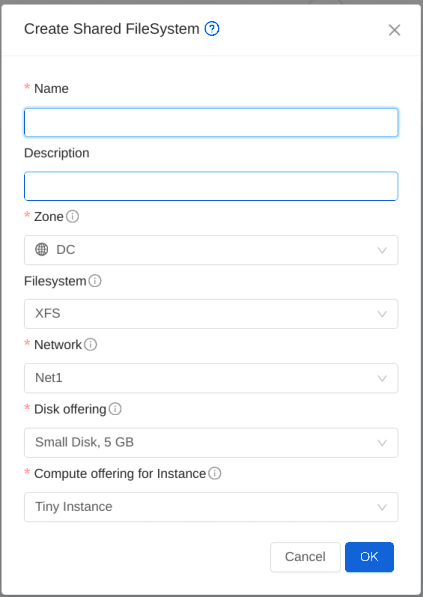
Click on Create Shared FileSystem, provide the following details and then click OK.
Name
Description
Zone
Format: Filesystem format (XFS, EXT4) which will be installed on the Shared FileSystem.
Network: Guest network to which the Shared FileSystem will be attached.
Compute offering: Offering using which the Shared FileSystem Instance will be deployed.
Disk offering: Offering used by the underlying data volume.
Size, MinIops and MaxIos: Displayed only when the disk offering takes custom size and custom iops.
Access#
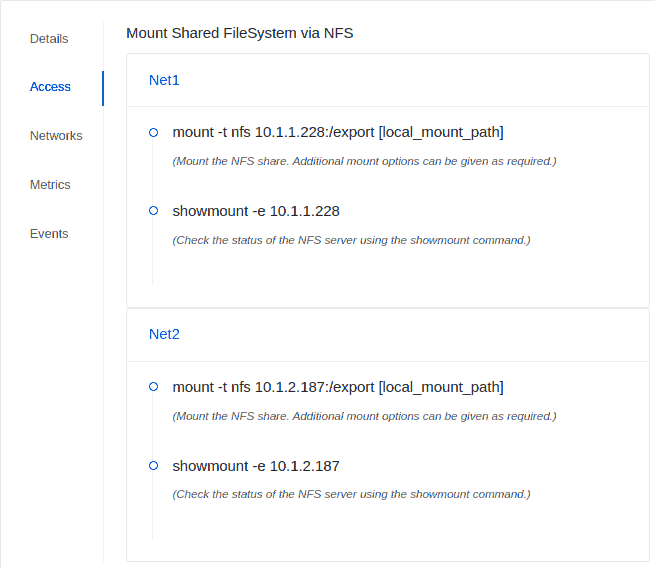
The Shared FileSystem can be mounted by using the information given on the Access Tab.
Lifecycle Operations#
Supported lifecycle operations are :
Update name and description of the Shared FileSystem
Stop/Start Shared FileSystem - This will Stop and Start the Shared FileSystem Instance
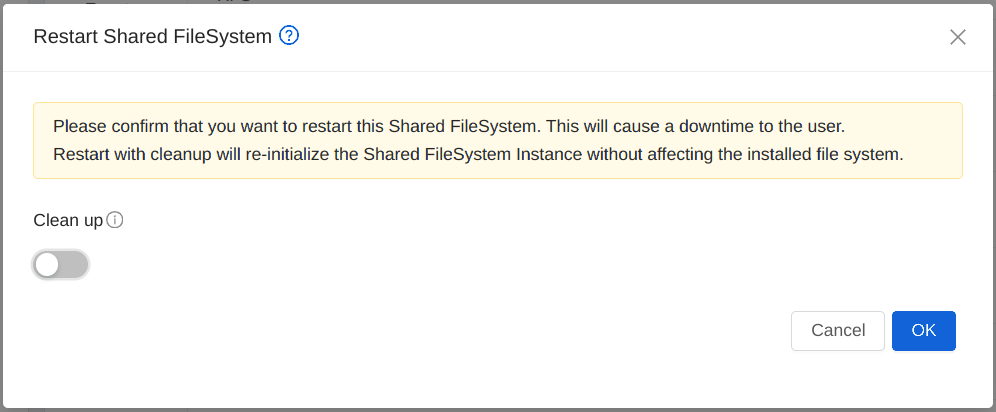
Restart Shared FileSystem - Reboots the Shared FileSystem Instance. If Cleanup option is provided then the Instance state is cleaned up and restored to the original template. Configurations related to setting up the NFS export will be done again. This will not affect the data on the volume attached to the Instance.
Change Disk Offering - The disk offering of the underlying volume can be changed. Whether live resize is supported or not depends on the hyervisor. Please note that the size of the Shared FileSystem can only be increased.
Change Service Offering - The service offering of the Shared FileSystem Instance can be changed as required. This can only be done when the Shared FileSystem is in Stopped state.
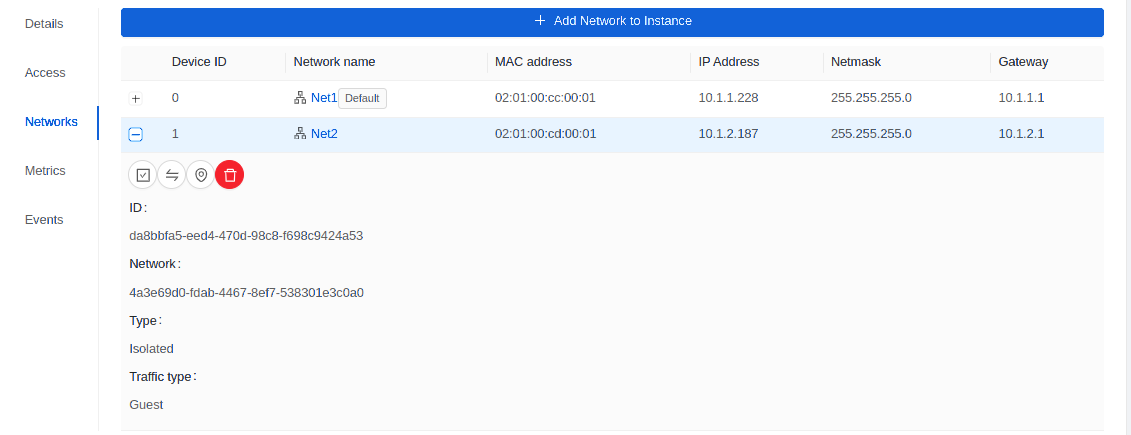
Add/Remove Network - Guest networks can be added to or removed from the Shared FileSystem. NFS share is exported to all networks. So instances on different networks can mount the same share using the respective IP addresses as given on the Access tab. APIs serving these operations are addNicToVirtualMachine and removeNicToVirtualMachine called with the Shared FileSystem Instance ID. Please note that the added networks must not be on overlapping CIDR ranges.
Destroy Shared FileSystem - The Shared FileSystem will be destroyed. It can be recovered before it automatically gets expunged. Expunge timeout is given by the global setting ‘sharedfs.cleanup.delay’.