Using Two Factor Authentication For Users#
Zergaw CloudStack supports two factor authentication wherein Users need to provide a 2FA code after the regular login using username and password. Zergaw CloudStack currently supports Google Authenticator or other TOTP authenticators and static PIN as the 2FA providers. Other 2FA providers can be easily integrated with Zergaw CloudStack using its plugin model.
Note
2FA is applicable to authentication mechanisms using username/password, LDAP, SAML. While using apikey/secretkey 2FA checks will be bypassed.
For admins, the following are the settings available at global and domain level to configure 2FA.
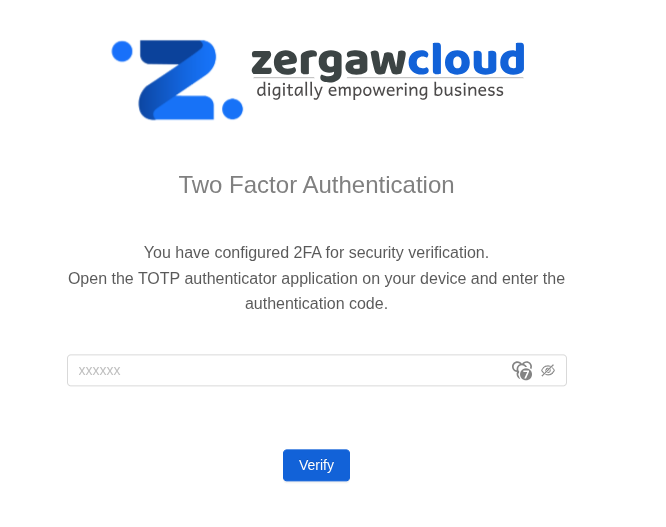
If 2FA is configured for the User, the 2FA verification page looks like below after the login.
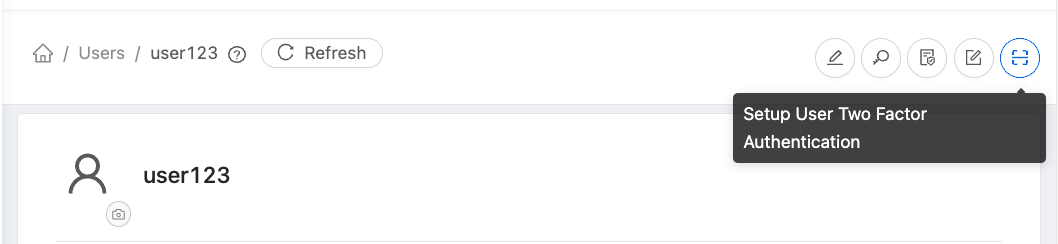
Users can configure 2FA using the action button in User form.
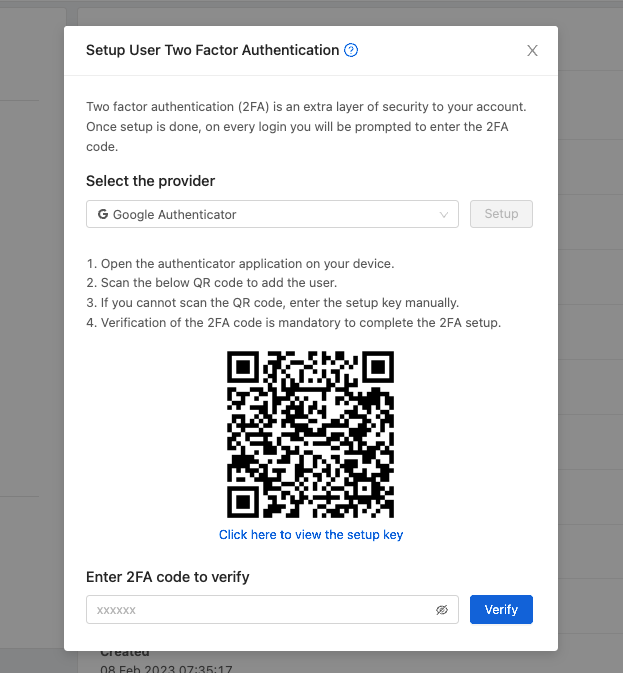
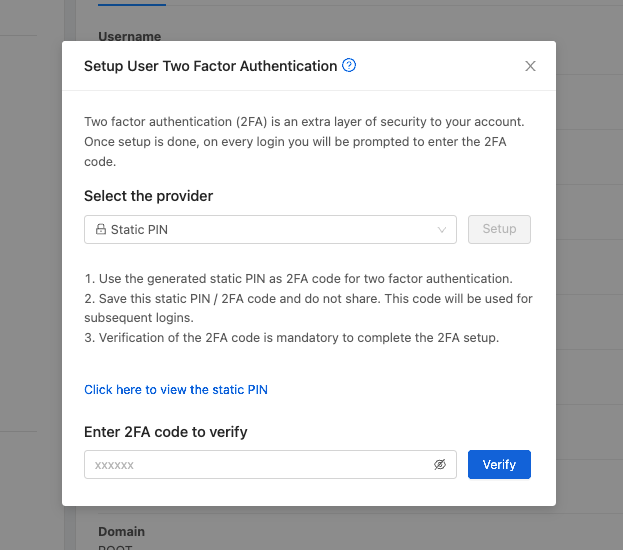
In the 2FA setup form, the User needs to select one of the providers. Zergaw CloudStack currently supports Google Authenticator or other TOTP Authenticators and static PIN as the 2FA providers.
When the Google Authenticator or other TOTP 2FA provider is selected, the User must setup the Account in the respective application in their device by either scanning the QR code or using the setup key provided by Zergaw CloudStack. Once this is set up in the authenticator application, the User must always use the provided 2FA codes to log in.
When the static PIN 2FA provider is selected, the User must use the static PIN as the code to verify 2FA with Zergaw CloudStack. The User must input this static PIN as a 2FA code every time they need to login.
Note
[2FA Recovery process] : If the User loses the authenticator application or forgets the static PIN, then the User must contact admin to disable 2FA.