

Object Storage Management#
Creating a New Bucket#
Buckets are logical containers for storing objects. To create a New Bucket:
Log in to the UI as a user or administrator.
In the left navigation bar, click Storage.
In Select View, choose Buckets.
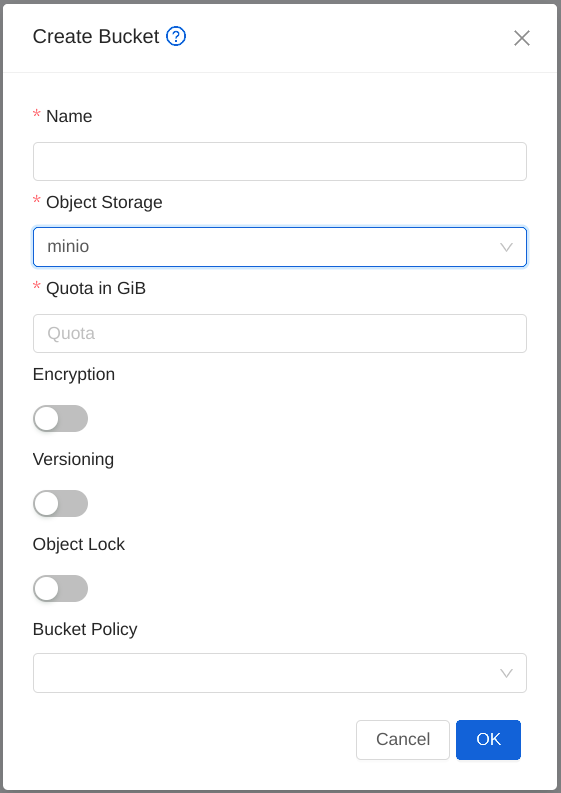
To create a new bucket, click create Bucket, provide the following details, and click OK.
Name: Give the bucket a unique name.
Object Store: Select the object store where you want the Bucket to reside
Quota in GiB: Enforce a quota on the bucket.
Based on the selected Object Store, you can specify additional details like quota, encryption, policy.
Browsing objects in a bucket#
1. Once a bucket has been created, you can browse the files in the bucket by clicking the bucket name.
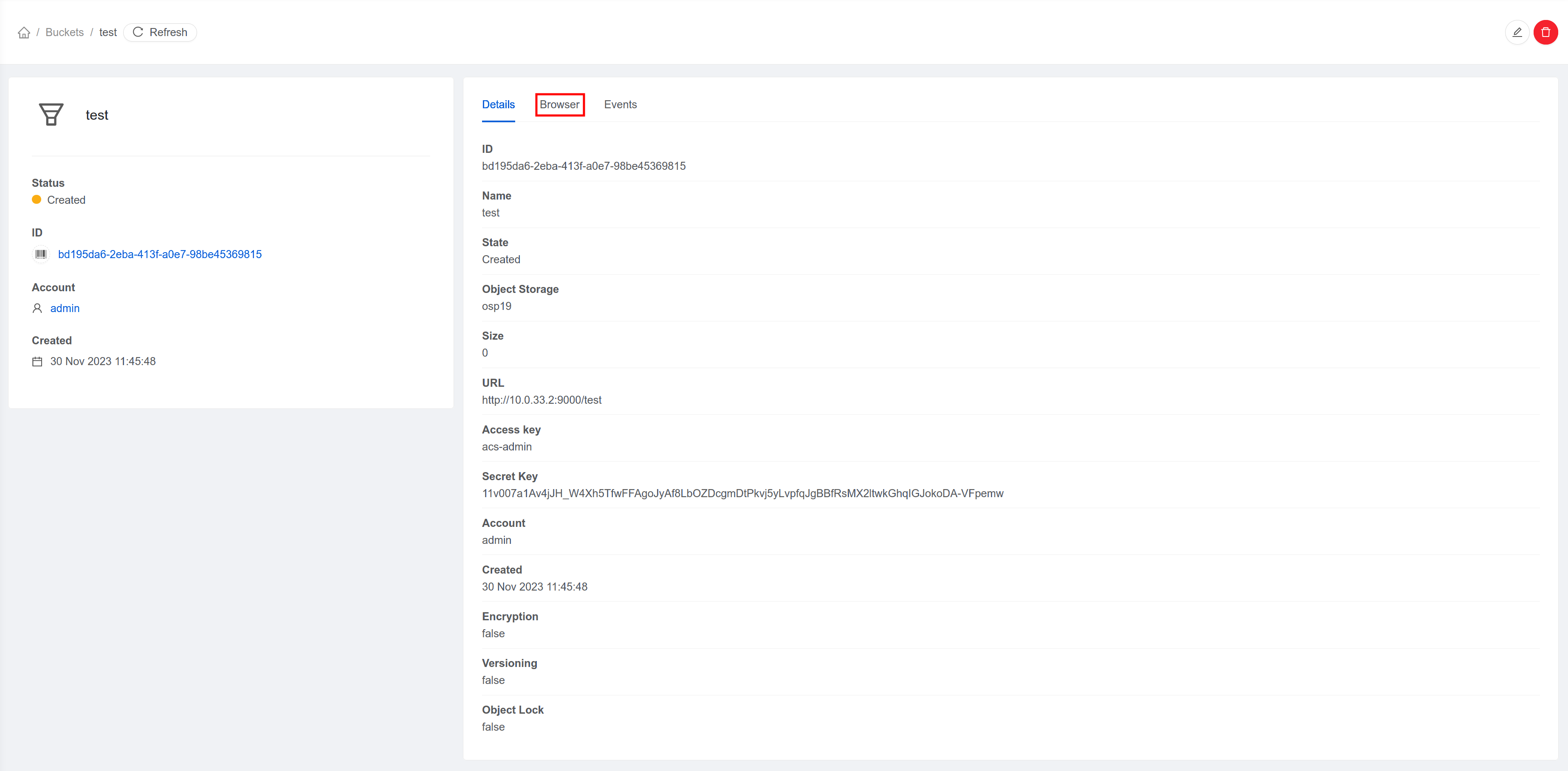
2. Open the Browser tab to list files in the bucket.
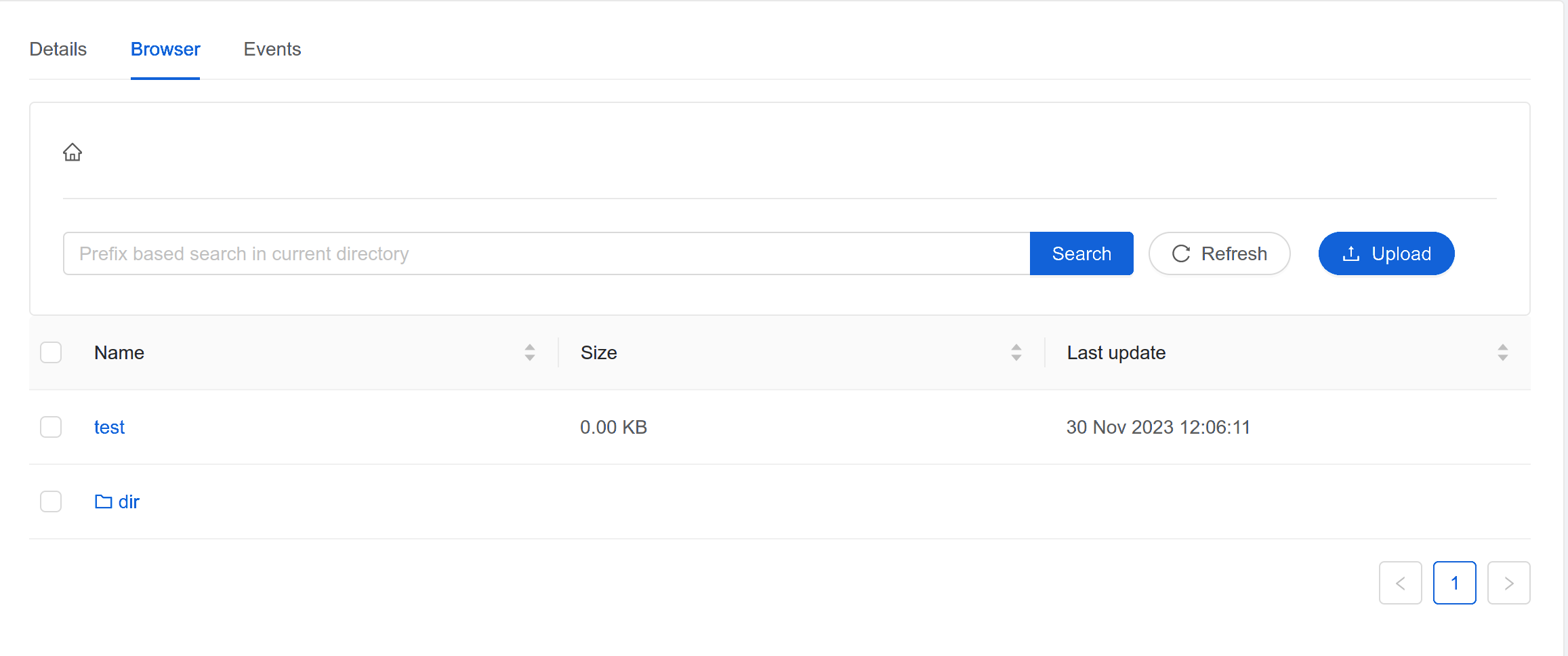
Under Browser tab, clicking a directory on the browser tab will list the objects in that directory.
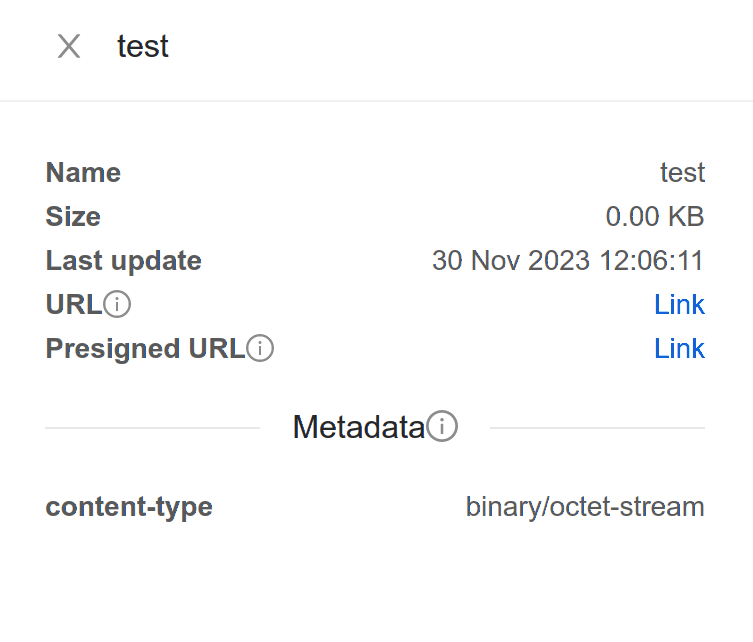
For a file, clicking it list the properties of that file with links to access the file.
Note
To access the bucket, UI uses the URL, access key and secret key from the bucket’s details.
Uploading an object to a bucket#
1. On the Browser tab, click the  button to upload a file to the bucket. This will open up a dialog box to select the file to upload.
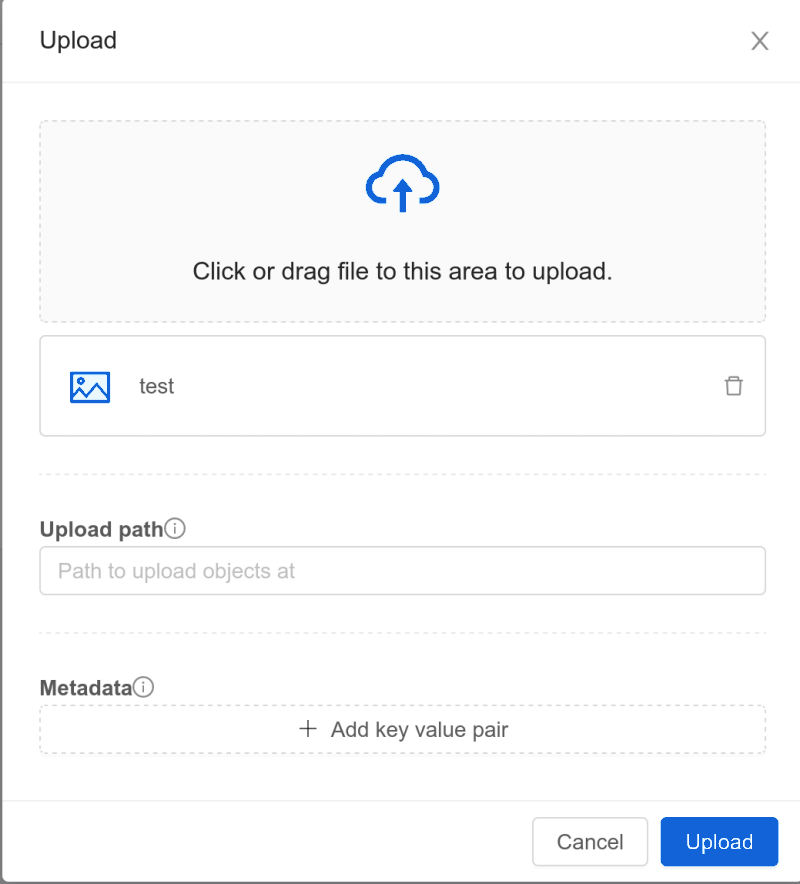
Select the file you want to upload and specify the upload path & metadata for the object as per requirements.
Click on Upload button to upload the file(s) to the bucket.
Deleting objects from a bucket#
Select the files you want to remove from the bucket.
Click on the
 button to delete the selected files from the bucket.